
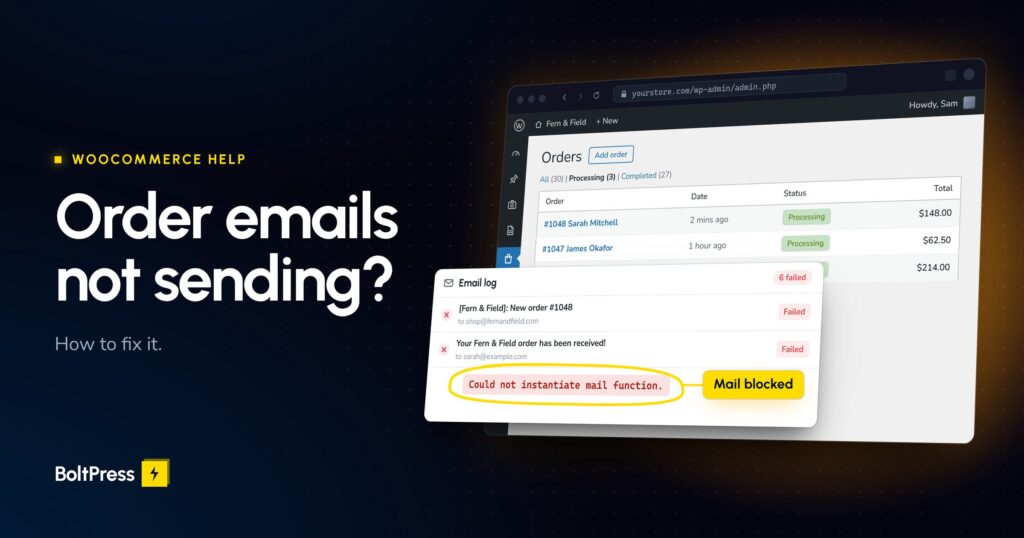
Quick triage (read this first). Order emails gone quiet? Take a breath, this is one of the most common WooCommerce problems and it is fixable. First, check your own spam or junk folder for the admin “New order” alert, and ask the customer to check theirs, because these emails are far more often filtered than truly not sent. Then work out which email is missing: your store’s admin alert, the customer’s receipt, or both. If both are missing, it is almost always a site-wide sending problem, and the real fix is to send your mail through an authenticated service (SMTP) instead of your web server. To rescue a single order right now, you can resend it from the order screen.
You found out the hard way. Maybe a customer emailed asking “where is my order?” for something they paid for days ago. Maybe you logged in and discovered a pile of new orders you were never told about. Either way, the sinking feeling is the same: WooCommerce is not sending order emails, money and trust have been quietly leaking, and you have no idea for how long.
Here is the reassuring part. This is rarely a sign that anything is seriously broken. In most cases the emails are being generated correctly and then filtered or dropped on the way out, because of how WordPress sends mail by default. Once you understand that one distinction, the fix is usually straightforward and permanent. This guide walks it in order, quickest and safest first, and is honest about the one step where it is smarter to hand things to someone who does this every day.
Are your WooCommerce order emails really missing, or just going to spam?
Before you change a single setting, rule out the most common answer: the email was sent, but it landed in a spam or junk folder. Check your own inbox’s spam folder for the admin “New order” notification, and ask a customer who did not receive their receipt to check theirs. WooCommerce mail is filtered far more often than it genuinely fails to send.
This matters because it reframes the whole problem. “Sent” and “delivered to the inbox” are two different things. WooCommerce can hand your email off perfectly and still have it quietly filtered downstream, because by default that email comes straight from your web server with no proof of who sent it. Most of this guide is really about closing that gap so your mail is trusted and lands where it should.
Not sure whether the problem is your store or your email setup? You can run a free WordPress health scan and we will flag the most likely issues in a couple of minutes. No login needed.
Is the missing email yours, or your customer’s?
Work out who is not getting mail, because it points straight at the cause. WooCommerce sends two families of emails. Admin emails (New order, Cancelled order, Failed order) go to you or your team. Customer emails (the Processing receipt, On-hold, Completed, Refunded, and the invoice) go to the shopper. Noticing which family is affected narrows the fix immediately.
- Both the admin alert and the customer email are missing. This is the common case, and it almost always means a site-wide sending failure: your server cannot reliably send mail at all. Skip ahead to the SMTP fix, because that is what will solve it.
- Only one side is missing. The cause is more specific: that particular email may be switched off, the recipient address may be wrong or stale, the order may be stuck in a status that sends no email, or mail is being filtered at just one end.
The stakes differ too. A broken admin “New order” email means sales come in and you never hear about them, so orders ship late or not at all. A broken customer receipt means shoppers pay and hear nothing back, which is exactly the silence that triggers worried “did my order go through?” messages.
What quick settings should you check first?
Before assuming anything is broken, check three things in WooCommerce, Settings, Emails. First, click “Manage” on the email in question and confirm “Enable this email notification” is ticked, because a disabled email sends nothing by design. Second, for admin emails, confirm the “Recipient(s)” field is a real, monitored inbox and not an old employee address or a typo (left blank, it falls back to the admin email under Settings, General). Third, check the order’s own status.
That last one catches a lot of false alarms. An order sitting in “Pending payment” sends no customer email at all, and that is not a bug. It usually means the payment never completed: a declined card, an abandoned checkout, or a payment gateway that failed to report back to your store. The customer receipt only fires once the order moves to Processing or On-hold. So “the customer never got a confirmation” is sometimes really “the order never got paid.”
While you are on that screen, glance at the “From” address at the bottom of the Emails tab. It should be an address on your own domain, such as [email protected], not a public mailbox like @gmail.com or @yahoo.com, which mailbox providers are quick to filter or reject.
And to rescue a single order immediately, open it under WooCommerce, Orders and use the “Order actions” box on the right. You can “Resend new order notification” to yourself, or “Email invoice / order details to customer” to send the shopper their details. (There is no built-in action to re-fire the Processing or Completed emails; those need a plugin or a status change.)
Why doesn’t WooCommerce send order emails reliably by default?
Here is the root cause behind most missing order emails. When WooCommerce sends mail, it hands it to WordPress, which by default passes it to your server’s built-in PHP mail function. That default path is unauthenticated: it carries no proof of who you are (no SPF or DKIM signature), it sends from your web server’s IP address, and on a great many hosts it is throttled, misconfigured, or blocked outright. The email is written correctly and then dropped or spam-filtered on the way out.
The plain-English version: WooCommerce writes the letter perfectly, then hands it to an unreliable post office. That is why the cure is almost never buried in WooCommerce’s own settings. It is about changing how the mail leaves your server.
Two related landmines make this feel random. On shared hosting your site shares an IP address with hundreds of neighbours, so if one of them spams, the whole IP can get blacklisted and your order emails stop, even though you changed nothing. And most shared hosts cap how much mail you can send, often somewhere around 100 to 500 messages an hour, then silently drop the overflow. A normal week is fine; a busy sale or a bulk send can quietly blow past the limit and take your order confirmations with it.
How do you fix WooCommerce order emails with SMTP and domain authentication?
The durable fix, and the one WooCommerce itself recommends, is to stop relying on your web server and send your mail through an authenticated email service instead. This is called setting up SMTP, and for a store it takes four steps that are always the same shape.
- Choose an email service and create an account. These transactional email providers exist to deliver mail reliably. Common choices with ready-made WooCommerce connections include Brevo, Amazon SES, Mailgun, and Postmark.
- Install an SMTP plugin and connect the service. The mainstream, well-supported options are WP Mail SMTP, FluentSMTP, and Post SMTP. You pick your provider in the plugin and paste in the key or credentials it gives you. Use only one SMTP plugin, as two will fight over the same mail.
- Authenticate your domain. At your domain registrar, add the DNS records the provider hands you: an SPF record, a DKIM record, and ideally a DMARC record. These are what prove the mail genuinely comes from you, so inboxes trust it.
- Send a test and confirm it passes. Use the plugin’s built-in test email, or paste your address into a free checker like mail-tester.com, and confirm it shows spf=pass and dkim=pass.
On providers, the honest guidance for a small store: Brevo is usually the easiest starting point, with a permanent free tier that suits typical order volumes. Amazon SES is very cheap at higher volume but noticeably more technical to set up. Free limits change often and are quoted inconsistently, so check the current figures when you sign up (SendGrid, for example, retired its long-standing free plan in May 2025).
One straight-talking caveat. Steps 1 and 2 are genuinely easy. Step 3, the DNS records, is where most non-technical owners get stuck, and getting it wrong (a duplicate SPF record, the wrong DKIM selector) can actively hurt your deliverability rather than help it. If you would rather not touch your domain’s DNS on a live store, this is a sensible moment to hand it over. We can set up authenticated email for your store end to end, and confirm every order email lands.
To test all of this properly, remember WooCommerce has no native “send test order email” button. The most realistic check is to place a small real test order yourself and watch for both the customer receipt and your admin alert, then confirm they arrive in the inbox and not the spam folder.
What else could be silently blocking your order emails?
If your sending is set up and mail still is not arriving, work through the less common causes, roughly in order of likelihood.
- A recent update introduced a conflict. If the emails stopped right after you updated a plugin, your theme, WooCommerce, or WordPress itself, that change is your prime suspect. The same careful, one-at-a-time approach we describe for a site that broke after an update applies here.
- A security plugin is blocking the send. Firewalls and hardening plugins such as Wordfence or Solid Security can intercept outbound mail. Check their logs and settings.
- A previous DIY attempt left the wrong SMTP details. A wrong host, port, username, or encryption type will stop everything. As a rule of thumb, port 587 goes with TLS and port 465 with SSL. The plugin’s test email will tell you fast.
- Aggressive caching or JavaScript optimization is breaking checkout itself. If the checkout submission is broken, the order (and therefore its email) is never created. Your Cart, Checkout, and My Account pages should always be excluded from caching and from blanket script delay or defer.
When you need to hunt a conflict on a live store without scaring customers, do it safely. Test on a staging copy, or install the free Health Check and Troubleshooting plugin, whose Troubleshooting Mode disables your plugins for your browser session only, so shoppers keep seeing the normal site while you find the culprit.
Why are some order emails delayed or stuck in a queue?
Sometimes the emails are not lost, just late. If your store or one of your plugins turns on WooCommerce’s deferred sending, order emails are placed in a background queue and sent a few seconds later instead of instantly. That queue is driven by WordPress’s built-in scheduler, which only runs when someone visits your site. On a quiet store, or one where the scheduler has been switched off without a proper replacement, those queued emails can arrive very late or pile up and never send.
Read this part carefully so you do not misdiagnose it, though. By default, WooCommerce sends your core order confirmations immediately, as part of the checkout, and those are generally not dependent on the scheduler. The queue mainly affects deferred, follow-up, and subscription-style emails. So a slow scheduler is worth checking if your mail is consistently late, but it is rarely the reason an instant order confirmation is missing.
You can see the queue yourself under WooCommerce, Status, Scheduled Actions, filtering for Pending, Past-due, or Failed. A growing stack of past-due actions means the queue is not draining. The reliable fix, pointing a real server-level scheduler at WordPress, is a host or developer task, and a good reason to lean on someone who manages this for you.
What does a missing order confirmation actually cost your store?
It is tempting to treat this as cosmetic. It is not. A missing customer receipt generates “where is my order?” tickets and refund demands, and it quietly erodes the trust that earns you repeat business. Worse, a customer who does not recognise a charge on their statement weeks later is a classic trigger for a chargeback, which costs you the sale plus a fee, and enough of them can get your payment account frozen. That order email is not a nicety. It is the paper trail that reassures the buyer and helps you defend a dispute.
On the other side, a silently dropped admin “New order” alert means you do not learn a sale happened until the customer chases you, so it ships late or gets missed entirely. And one more trap worth knowing: on current WooCommerce, an email logged as “Sent” only means your store handed it off without an error. It does not prove the message reached the inbox rather than spam. That is exactly how a silent email failure can run for weeks before anyone notices.
How do you keep WooCommerce order emails working for good?
Once your emails are flowing again, the real win is making sure they stay that way. This is ongoing, invisible-until-it-breaks work, and it maps neatly onto every failure above:
- Send through an authenticated email service, not your host’s default mail, so deliverability does not depend on a shared server’s reputation.
- Keep SPF, DKIM, and DMARC in place and re-checked whenever your provider or DNS changes. This is what keeps you on the right side of the inbox rules Gmail and Yahoo introduced in early 2024 and Microsoft added in mid 2025.
- Give the background scheduler a proper server-level trigger and keep an eye on the Scheduled Actions queue.
- Place a real test order now and then, including a guest checkout, and read the actual inbox, because a “Sent” log entry is not proof of delivery.
One reassurance so you do not over-worry: those stricter inbox rules from Gmail, Yahoo, and Microsoft only become mandatory once you send thousands of messages a day, which most single stores never reach. For a normal store, proper authentication is simply best practice for landing in the inbox, not a legal hurdle you have to clear.
None of this is hard for a specialist, but it is fiddly, easy to get subtly wrong, and thankless to babysit alone. That is where managed WooCommerce maintenance helps: setting up authenticated email is a one-off job, done as a fixed-price fix or with your plan’s work hours, and every care plan then runs your updates with a backup first, a health check on cart and checkout, and an automatic rollback. To see how many work hours each plan includes, you can compare our care plans.
You have two good options. With a little time and the steps above, most owners can get their order emails sending again. If you would rather not gamble with orders and DNS on a live store, hand it to us and an engineer will get your confirmations landing reliably. Have an expert fix your store’s emails.
Frequently asked questions
Why is WooCommerce not sending order emails?
Most often, WordPress hands the mail to your server’s built-in PHP mail function, which many hosts block or send without authentication, so the emails silently fail or go to spam. Other common causes are that the specific email is disabled, the admin recipient address is wrong or stale, or the order is stuck in “Pending payment” (which sends no email at all). The durable fix is to route your mail through an authenticated SMTP provider on your own domain.
Why do my WooCommerce emails go to spam instead of the inbox?
Because they are sent from your web server’s IP with no SPF, DKIM, or DMARC authentication, or from a “From” address like @gmail.com that your domain cannot vouch for. Gmail, Yahoo, and Outlook filter or reject unauthenticated mail. Fix it by sending through an SMTP provider on your own domain and adding SPF, DKIM, and DMARC DNS records, then testing your score on mail-tester.com.
How do I resend a WooCommerce order email?
Open the order under WooCommerce, Orders, and in the “Order actions” box on the right choose “Resend new order notification” (your admin alert) or “Email invoice / order details to customer”, then click the send button. There is no built-in action to resend the Processing or Completed customer emails; those need a plugin or an order-status change.
My customer did not get a confirmation but I got the admin email. Why?
That points to a specific issue rather than site-wide failure. The customer’s Processing or Completed email may be disabled, filtered into their spam, or the order may be stuck in “Pending payment”, which fires no customer email. If both the customer email and your admin alert are missing, it is a site-wide sending problem, and you should set up authenticated SMTP.
Do I really need an SMTP plugin for WooCommerce?
In practice, yes. WordPress’s default mail is unauthenticated and widely blocked or spam-filtered, and WooCommerce’s own documentation recommends a dedicated email service. Install an SMTP plugin (WP Mail SMTP, FluentSMTP, or Post SMTP), connect a transactional provider, and authenticate your domain with SPF and DKIM. It is the single highest-impact fix for missing order emails.
Which free email service works best for a small WooCommerce store?
Brevo’s permanent free tier is usually the easiest small-store pick, and it suits typical order volumes. Amazon SES is cheaper at higher volume but more technical to set up, and Mailgun offers a small free allowance too. Free limits change often and are quoted inconsistently, so check the current figures when you sign up rather than trusting an old blog post.
How do I test whether my WooCommerce order emails are actually working?
WooCommerce has no built-in test button, so use your SMTP plugin’s email-test tool (WP Mail SMTP, FluentSMTP, and Post SMTP all include one), or place a small real test order and watch for both the customer confirmation and your admin “New order” alert. Then check the inbox, not just the spam folder, because a logged “Sent” does not prove the email was delivered.
Written by the BoltPress team, the engineers who fix and maintain WooCommerce stores for a living. We keep order emails, checkouts, and the rest of the store quietly working, so you can get on with selling.