
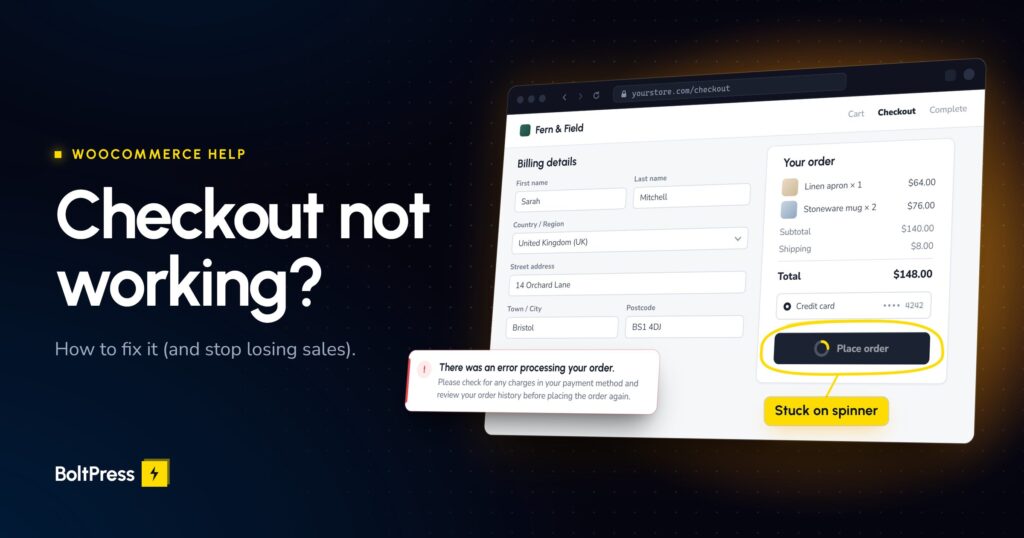
Quick triage (read this first). WooCommerce checkout not working and orders not coming in? Take a breath, this is one of the most common WooCommerce problems and it is almost always fixable. First, place a test order yourself in a private window while logged out, because many checkout faults only hit guests, and write down the exact error wording. Then work out where it fails: the checkout page will not load, the Place order button spins or shows an error, or the payment goes through but no order appears. If money was taken but no order exists, do not ask the customer to pay again until you have checked your payment dashboard. And do not switch off every plugin on your live store mid-trading.
You found out the hard way. Maybe a customer emailed to say they tried to pay three times and gave up. Maybe sales simply went quiet on a day that is never quiet, and you only noticed when you opened your orders. Either way, the sinking feeling is the same: your WooCommerce checkout is not working, every abandoned basket is money walking out the door, and you have no idea how long it has been broken.
Here is the reassuring part. A broken checkout nearly always comes down to a short list of ordinary causes: a cache serving stale pages, a plugin or update conflict, a payment gateway setting, or a security rule that is a little too keen. The trick is to read what your checkout is telling you before you change anything. This guide walks it in order, quickest and safest first, and is honest about the steps where it is smarter to hand things to someone who does this every day.
Is your WooCommerce checkout not working for everyone, or only for some customers?
Test it the way a real customer would before you change anything. Open a private window, stay logged out, add a cheap product, fill in every field with a real address, and try each payment method. Many checkout faults only affect guests or phones, so testing while logged in as the owner can hide the problem completely.
Write down the exact wording of any error, because similar-looking messages point to different causes. Then repeat the test on your phone using mobile data, including once from a link inside Instagram or Facebook, whose in-app browsers can lose the shopper’s session when a payment hands off to PayPal.
Two quick settings catch a surprising number of “it works for me” cases:
- Is your store still set to “Coming soon”? Newer stores start out in Coming soon mode, which administrators skip, so you see a working store while guests see a landing page. Check that WooCommerce, Settings, Site visibility says “Live”.
- Is guest checkout switched off? If it is disabled under WooCommerce, Settings, Accounts and Privacy, logged-out shoppers are told “You must be logged in to checkout.” That can be deliberate, but it should never be accidental.
Which checkout symptom are you seeing?
Match what you see to the most likely cause before touching any settings. A spinning wheel, a button that does nothing, a specific error message, missing payment options, a bounce back to the cart, a blank page, and a payment with no order each point somewhere different, so the symptom tells you where to start looking.
- The page spins forever after “Place order”. Usually a script conflict (often a speed plugin delaying scripts), mismatched site addresses, a PHP error, or a slow server stalling while it sends the order emails.
- The button does nothing, or the page just reloads. Almost always a script conflict from a plugin, your theme, or an optimization setting.
- “We were unable to process your order, please try again.” or “Sorry, your session has expired.” Both mean WooCommerce’s security check failed, which nearly always points to a cached copy of the checkout with an out-of-date security token baked in.
- Checkout sends shoppers back to an empty cart. WooCommerce cannot see the shopper’s basket, so the session is being lost. Caching, an http and https (or www and non-www) mismatch, or blocked cookies are the usual suspects.
- “There are no payment methods available” or missing card fields. Usually a gateway that does not support the newer Checkout block, a gateway in the wrong mode, or a conflict. Apple Pay and Google Pay only appear on supported devices, so not seeing them on your laptop is normal.
- A blank checkout or “There has been a critical error on this website.” A PHP fatal error, very often right after an update. Our guide to the WordPress white screen of death walks through that recovery in detail.
- The customer was charged, but the order sits in “Pending payment”. The gateway could not report back to your store, which is usually a webhook problem (see the gateway section below).
What does “There was an error processing your order” actually mean?
It is WooCommerce’s generic fallback message, not a card decline. The classic checkout shows it when the order request fails outright or comes back garbled, usually because of a PHP error, a firewall block, or a mismatched site address. A genuine decline normally shows the payment provider’s own, more specific message instead.
The full text continues “Please check for any charges in your payment method and review your order history before placing the order again.” Take that seriously. Because the request failed partway through, the card may already have been charged. Before you tell a customer to try again, check your Stripe or PayPal dashboard and your Orders screen, or you risk charging them twice. On the newer Checkout block, the same situation reads “Something went wrong when placing the order”, followed by a prompt to check for order updates before retrying.
If it hits some orders but not others, suspect a firewall or caching rule. If it hits every order since a particular day, suspect whatever changed that day.
Where has WooCommerce already written down what went wrong?
In three places you can read without touching any code: the failed order itself, the WooCommerce logs, and the System status report. Together they usually name the failing plugin, the payment error, or the misconfigured page within a few minutes, which turns the rest of the fix from guesswork into a targeted repair.
- The order. In WooCommerce, Orders, open any recent “Failed” or “Pending payment” order and read the order notes, where gateways record decline reasons and errors.
- The logs. In WooCommerce, Status, Logs, choose the “fatal-errors” source and read today’s entries, which usually name the exact plugin or file. If your gateway has a logging option, switch it on for new attempts.
- The System status report. In WooCommerce, Status, look for red warnings on the Checkout page row, an “Outdated templates” warning, a low WP Memory Limit (256 MB is comfortable), and any prompt to update the database.
- Your inbox. After a fatal error, WordPress emails your admin address (“Your Site is Experiencing a Technical Issue”) with a recovery link that lets you log in with the faulty plugin paused.
Then ask the simplest question of all: what changed in the last 48 hours? An automatic update, a new plugin, a host migration, or a new Cloudflare or security rule sits behind a large share of broken checkouts.
Is your payment gateway set up correctly?
Check that your gateway is in live mode, connected with live credentials, and able to report payments back to your store. A gateway left in test mode declines every real card, and a broken webhook leaves paid orders stuck in “Pending payment”. Both take two minutes to check under WooCommerce, Settings, Payments.
- Stripe test mode. Make sure “Enable test mode” is unticked on a live store. The giveaway is a checkout line reading “Test mode: use card 4242 4242 4242 4242” (or a Test Mode badge on the Checkout block).
- Stripe webhooks. Webhooks are how Stripe tells your store “this payment succeeded”. Under “Configure connection”, check that webhooks show as “Configured”. Stripe treats a redirect as a failure, so an http to https or www redirect on your address can quietly break them, and so can a firewall.
- PayPal. Make sure sandbox mode is off and your live account is connected. Sandbox details on a live store, or an unsupported currency, can make the buttons vanish.
- No payment methods on the Checkout block. If the block says “There are no payment methods available”, the gateway is probably not block-compatible. Updating it usually fixes this, and the classic checkout is the fallback.
Finally, look in your Stripe or PayPal dashboard for payments that succeeded with no matching WooCommerce order. Those customers paid and heard nothing, so look after them first.
Could caching be serving your customers a stale checkout?
Yes, and it is one of the most common causes of checkout failures that come and go. If a cache stores a copy of your checkout page, visitors get a frozen page with an expired security token and no idea what is in their basket, so orders fail or bounce back to the cart, usually for guests only.
The plain-English version: a cache is a photocopier. That is perfect for your product pages, which look the same for everyone. A checkout is a personal form, and handing every shopper a photocopy of someone else’s form, signed yesterday, cannot work.
Here is the detail most guides get wrong. WooCommerce already tells caching plugins not to cache Cart, Checkout, and My Account, and well-behaved plugins listen. The trouble usually comes from caches outside WordPress that never hear that signal, such as a Cloudflare “Cache Everything” rule or your host’s server cache. Speed plugins cause the rest by delaying or combining the scripts checkout depends on.
- Purge every layer. Clear your caching plugin, your host’s cache, and Cloudflare, then retest as a logged-out guest.
- Confirm the exclusions. Check that Cart, Checkout, and My Account (and WooCommerce’s session cookies) are excluded in your caching plugin and in any Cloudflare or host rules, which a plugin setting does not reach.
- Exclude checkout from script delay. If “delay”, “defer”, or “combine JavaScript” is on, exclude your checkout and payment scripts, or switch it off, and retest.
- Watch for the red flag. A checkout showing someone else’s details or an old basket is definitely cached. Fix that immediately, because it is a privacy problem as well as a sales one.
Did a recent update or plugin conflict break your checkout?
If checkout broke right after an update, that change is your prime suspect. Read the fatal-errors log first, because it often names the culprit outright. If it does not, find the conflict safely, on a staging copy or with the Health Check and Troubleshooting plugin, rather than switching plugins off on your live store.
- Note what changed and when. Compare recent plugin, theme, and WooCommerce updates with the time of the first failed order. Payment plugin updates are frequent suspects.
- Read the log entry. If the fatal-errors log names a plugin, that is almost certainly your answer.
- Run a conflict test without disturbing shoppers. Install the free Health Check and Troubleshooting plugin and enable Troubleshooting Mode from Tools, Site Health. It changes plugins and theme for your logged-in session only, so shoppers are unaffected, but it cannot reproduce a guest-only fault. Start with a default theme (Storefront or Twenty Twenty-Five) plus only WooCommerce and your gateway, confirm checkout works, then re-enable plugins one at a time until it breaks.
- Update or roll back the culprit. Check for a newer version first, because the author may already have shipped a fix. If not, roll back, but take a full backup first.
Two rules that matter here. Troubleshooting Mode does not put your gateway into test mode, so any test order takes a real payment. And never roll WooCommerce itself back without a full backup, because its database updates may already have run.
One straight-talking caveat. Steps 1 and 2 are genuinely easy. Steps 3 and 4 are where most non-technical owners get stuck, because a mistake on a store taking real money is expensive. If you would rather not experiment on a live store, this is a sensible moment to hand it over. We can track down the conflict and get your checkout taking orders again, and confirm it with a real test order.
For the full post-update playbook, including safe rollbacks, see our step-by-step recovery guide for when an update breaks your site.
Does it matter whether you use the Checkout block or the classic checkout?
It can matter a lot. Since WooCommerce 8.3 (November 2023), new stores get the Checkout block by default, while older stores usually kept the classic checkout. Some older extensions, field editors, and gateways only work with the classic version, so a payment method or custom field can quietly vanish on the block.
To check, edit your Checkout page: a “Checkout” block with smaller blocks inside means blocks, while a shortcode or “Classic Checkout” placeholder means classic.
If an extension is incompatible, the block’s settings sidebar shows a warning with a one-click switch to the classic checkout. You can also select the Checkout block, choose Transform, then Classic Shortcode, and save (WooCommerce recommends doing the same to the Cart block). It is reversible, but only do it when that warning appears or the trouble started after a move to blocks, and test a real order straight afterwards, ideally in a quiet hour.
The two also talk to your server differently. The Checkout block places orders through WooCommerce’s Store API (addresses under /wp-json/wc/store/), so anything that blocks that route breaks the block checkout while the classic one may keep working.
What else could be silently blocking orders?
Security rules, mismatched site addresses, and store settings that leave the shopper no valid option are the usual remaining culprits. Each produces a checkout that looks fine until someone presses Place order. Work through them roughly in this order, and note the exact message each one shows, because the wording often points at the setting at fault.
- A firewall or security plugin. Wordfence, your host’s firewall, and Cloudflare’s bot protection can all mistake checkout requests for an attack. Check Wordfence’s Live Traffic view for blocks. Cloudflare’s basic Bot Fight Mode cannot be bypassed with custom rules, so it may need switching off. Plugins that hide the REST API from visitors can stop guests using the Checkout block.
- Mismatched site addresses. Under Settings, General, the WordPress Address and Site Address must be identical and both start with https, or you get spinners and lost sessions.
- Shipping with no matching option. “No shipping method has been selected” or “Unfortunately, we do not ship to…” means the address matched no zone, or a zone with no methods. Zones are checked top to bottom and the first match wins.
- Checkout field editors. A plugin that removes core fields, such as the billing country, can break your gateway’s payment verification. Editors built for the classic checkout also have no effect on the Checkout block.
- A total that changed at the last second. Since WooCommerce 11.1 (September 2026), the Checkout block stops the order if the total changed after the shopper confirmed it, rather than charge an unexpected amount. Dynamic pricing, currency switchers, and expiring sales or coupons can trigger it. A refresh usually clears it.
How do you keep taking orders while checkout is being fixed?
Give customers another way to pay and tell them what is happening. Switch on a second payment method if only one gateway is failing, post a short notice with a phone number or email for orders, and pause any aggressive caching. Then, once it is fixed, reconcile every payment that arrived without a matching order.
- Turn on a backup payment method. If Stripe is failing but PayPal works, or the other way round, temporarily disable the broken gateway. Bank transfer can carry a small store through a bad day.
- Tell shoppers. A short store notice such as “Card payments are temporarily down, call or email us to order” keeps buyers who would otherwise leave quietly.
- Pause the risky speed settings. Switching off a Cloudflare “Cache Everything” rule or script delay costs a little speed and can restore checkout instantly.
- Reconcile afterwards. Compare your Stripe or PayPal dashboard with WooCommerce, Orders, and contact anyone who paid without getting an order. Do not refund or recharge anyone blindly.
And two things not to do in a panic. Do not run “Clear customer sessions” under WooCommerce, Status, Tools as a quick fix, because it empties every shopper’s basket. And do not paste in forum snippets that switch off WooCommerce’s checkout security checks.
What does a broken checkout actually cost your store?
More than the orders you can see. If your store averages 3 orders an hour at an 80 dollar average order value, every hour of broken checkout is roughly 240 dollars that never arrives, plus the shoppers who try once, fail, and never come back. Most of them will not tell you why they left.
A checkout failure is silent by nature: your uptime monitor says the site is up, and the only signal is a quiet dip in orders, so many owners only find out when a customer complains, days later. And a customer who was charged but never got an order is a likely chargeback, which costs the sale plus a fee. The fix is rarely expensive. Staying broken is.
How do you keep your WooCommerce checkout working for good?
Treat checkout as the one page that must be tested after every change. Update on a staging copy first, place a real test order (including a guest checkout) after every update, keep cart and checkout out of every cache, and watch your payment webhooks, because uptime monitoring alone will never tell you checkout broke.
- Update on staging first, then on the live store, never the other way round.
- Place a small real test order after every update, as a logged-out guest, with each payment method, and on a phone too.
- Keep Cart, Checkout, and My Account out of every cache layer, including Cloudflare and your host, and keep checkout scripts out of delay and combine settings.
- Watch the gateway, not just the site, including webhook deliveries and orders piling up in “Pending payment”.
- Keep PHP current. WooCommerce recommends PHP 8.3, and WooCommerce 11.6 (planned for February 2027) will require PHP 8.1 or newer.
- Run fewer, well-maintained plugins, especially anything that touches checkout.
None of this is hard for a specialist, but it is fiddly, easy to get subtly wrong, and thankless to babysit alone. That is precisely what managed WooCommerce maintenance is for: every update runs with a backup first, a health check on your cart and checkout after, and an automatic rollback if the check fails. When something still breaks, like a gateway webhook or a cached checkout, fixing it uses your plan’s work hours or a fixed-price fix.
You have two good options. With a little time and the steps above, most owners can get their checkout taking orders again. If you would rather not gamble with sales on a live store, hand it to us and an engineer will track down the cause and get orders flowing again. Have an expert fix your checkout.
Frequently asked questions
Why is my WooCommerce checkout not working?
The most common causes are a cache serving a stale copy of the checkout page, a plugin or theme conflict (often right after an update), a payment gateway in the wrong mode or with broken webhooks, and a firewall or security plugin blocking checkout requests. Test as a logged-out guest in a private window, write down the exact error, then read WooCommerce, Status, Logs before you change anything.
Why does my WooCommerce checkout keep spinning after I click Place order?
An endless spinner means the order request never got a usable answer from your server. The usual causes are mismatched WordPress and Site addresses under Settings, General, a JavaScript conflict (often a speed plugin delaying or combining scripts), a PHP error, or a slow server stalling while it sends the order emails. Check that both addresses match and use https, then read the fatal-errors log.
What does “There was an error processing your order” mean in WooCommerce?
It is WooCommerce’s generic fallback message, shown when the order request fails or returns something unreadable, usually because of a PHP error, a firewall block, or a site address mismatch. It is rarely a simple card decline. Because the request failed partway, the card may already have been charged, so check your payment dashboard and Orders screen before asking the customer to try again.
Why does checkout work for me but not for my customers?
Usually because you are logged in. Logged-in users typically skip the page cache, while guests can receive a cached checkout with an expired security token. Newer stores may also still be in Coming soon mode, which administrators bypass, or have guest checkout switched off. Always test in a private window while logged out, and check that WooCommerce, Settings, Site visibility says “Live”.
Why are no payment methods showing on my WooCommerce checkout?
On the Checkout block, “There are no payment methods available” usually means the enabled gateway is not compatible with the block checkout, so update the gateway or switch to the classic checkout. Missing card fields often point to a plugin or theme conflict, and PayPal buttons can vanish when sandbox details are used on a live store. Apple Pay and Google Pay only appear on supported devices.
Should I switch from the Checkout block back to the classic checkout?
Only if the block’s settings sidebar warns that an extension is incompatible, or the problem started after a move to blocks. You can switch by selecting the Checkout block, choosing Transform, then Classic Shortcode, and saving, ideally doing the same to the Cart block. It is reversible, but place a real test order straight afterwards, and remember that fields added only for the block will not appear in the classic checkout.
My WooCommerce checkout broke after an update. Should I roll back?
Read WooCommerce, Status, Logs first, because the fatal-errors entry often names the plugin that failed, and check whether a newer fixed version already exists. If you do roll back, take a full backup first, and never roll back WooCommerce itself casually, because its database updates may already have run. Wherever you can, test the rollback on a staging copy before touching the live store.
Written by the BoltPress team, the engineers who fix and maintain WooCommerce stores for a living. If you would rather never hear about a broken checkout from a customer again, let us keep an eye on your store’s checkout so you can get on with selling.