
Quick triage (read this first). Staring at a blank white WordPress page? Take a breath, it is almost always fixable. First, check the page in a private/incognito window and clear your caches, because sometimes it is not really down. Then notice where the screen is blank: only the public site, only wp-admin, or both. If you can still log in, deactivate your most recent plugin or theme. If you are locked out, check your admin email for a WordPress recovery link, and if there is none, you will fix it over FTP with the steps below. Do not delete files to troubleshoot.
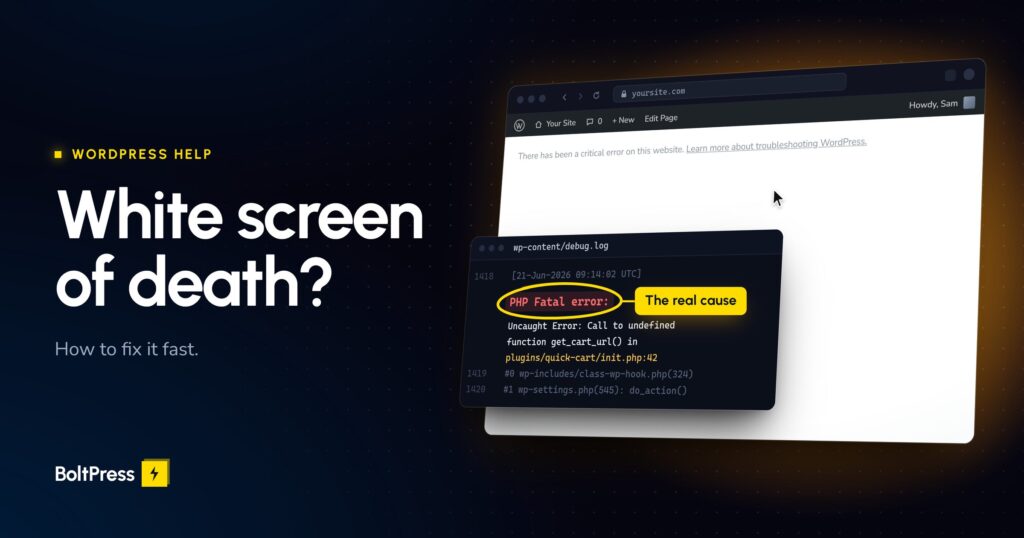
You loaded your site and got nothing. A plain white page, no error, no logo, no menu. Or maybe you see “There has been a critical error on this website.” This is the WordPress white screen of death, and it is one of the most alarming things a site owner can see, precisely because the screen tells you nothing. If you run a store, the panic is sharper, because a blank checkout means money walking out the door every minute.
Here is the reassuring part. A blank screen is a symptom, not a verdict. It almost always traces back to one of a handful of ordinary causes, and most of them are fixable in minutes once you know where to look. This guide walks the fixes in order, safest and fastest first, and tells you honestly when a step carries real risk and when it is smarter to hand it to someone who does this all day.
What is the white screen of death, exactly?
The white screen of death is a blank page that WordPress serves instead of your site, usually with no error message at all. Under the hood it nearly always means PHP stopped running partway through, either because it ran out of memory or because a plugin, theme, or core file threw a fatal error. The blankness is just PHP giving up before it could print anything.
Because the cause is “something stopped the code,” the cure is almost always “find the one thing that broke and switch it off.” That is the whole strategy below.
First, where is the screen blank? (this narrows it fast)
Before changing anything, note exactly where the blankness appears, because it points straight at the cause. Check your public homepage and your /wp-admin/ login in separate tabs.
- Front end blank, admin still works. Great news, you can fix this from the dashboard. The culprit is usually a plugin or your active theme. Jump to the deactivation steps.
- Admin blank too, or instead. A deeper plugin or theme fault, or exhausted memory. You may need Recovery Mode or FTP.
- One single page blank (only the checkout, only one post). Points at the specific plugin, block, or shortcode used on that page, not a site-wide failure.
- Blank everywhere, including incognito. A core-level fault or memory issue. Work the steps top to bottom.
Not sure what is failing? You can run a free WordPress site scan and we will flag the most likely problem in a couple of minutes. No login needed.
Is it really down, or are you seeing a cached blank?
Rule out the easiest possibility before you touch a file: the site recovered, but you are looking at a stale cached copy of the blank page. Open your homepage in a private/incognito window, in a different browser, and on your phone using mobile data rather than your home wifi.
If it loads in any of those, your site is actually up. Clear your caches in this order: hard-refresh the browser (Ctrl+Shift+R on Windows, Cmd+Shift+R on Mac), clear your caching plugin (WP Rocket, LiteSpeed, W3 Total Cache), clear your host or server cache, then purge your CDN (Cloudflare and similar). If the site stays blank everywhere, including incognito and mobile data, it is genuinely down, and we keep going.
The fastest way back in: WordPress Recovery Mode
If you see “There has been a critical error on this website” rather than a pure blank page, WordPress has likely already done half the work for you. Since WordPress 5.2, when it catches a fatal error it pauses the broken component and emails your site administrator a one-time recovery link.
Open the inbox of your site’s administrator email (the address under Settings, General) and look for a message titled close to “Your Site Is Experiencing a Technical Issue.” Click the link inside. WordPress logs you into a special Recovery Mode with the faulty plugin or theme already flagged, and crucially, the fault is paused only for your session, so visitors are not affected while you work. Deactivate the flagged item, click Exit Recovery Mode, and recheck your site.
A few honest caveats so you do not get stuck waiting:
- The recovery link is time-limited (about an hour), so use it promptly.
- WordPress rate-limits how often it resends, so reloading the broken page repeatedly will not flood you with new links.
- The email can land in spam or never arrive, because it is sent straight from your web server before your email plugins load. If it does not show up, do not wait on it. Move to the steps below.
The most common cause: a plugin or theme conflict
If the white screen appeared right after you installed, updated, or activated something, that something is your prime suspect. Plugins are the single biggest source of these failures by a wide margin, with the large majority of WordPress security and compatibility issues each year tracing back to plugins rather than core. The fix is to switch the suspect off and confirm.
If you CAN still reach wp-admin
- Deactivate your most recently changed plugin under Plugins, then reload the site. If it comes back, you found it.
- Still blank? Deactivate plugins one at a time, checking the site after each, until it recovers. The last one you switched off is the cause.
- Suspect the theme? Switch to a default theme (such as Twenty Twenty-Five) temporarily. If the site returns, the theme is at fault.
- Clear all caches after each change so a stale page does not fool you.
If you are LOCKED OUT (fix it over FTP or File Manager)
When the dashboard is blank too, you can still disable plugins by renaming their folders. You will need FTP/SFTP access (FileZilla is a free client) or the File Manager in your hosting control panel. Open the wp-content/plugins/ folder.
Method 1, the gentle one (try first). Find the folder of the plugin you most recently changed and rename it, for example from bad-plugin to bad-plugin-off. WordPress instantly treats that plugin as gone and deactivates only it. Check your site.
Method 2, the blunt one (if that did not help). Rename the entire plugins folder to something like plugins-off. WordPress disables every plugin at once. If the site returns, a plugin is the cause. Rename the folder back to plugins, then reactivate plugins one by one from the dashboard until the screen goes blank again. That last plugin is your culprit.
Two rules that matter. On a live store, prefer Method 1, because Method 2 also turns off your security, caching, and payment plugins for a moment. And always remember: renaming a folder is reversible, deleting it is not. Never delete anything to troubleshoot.
Hunting a conflict without scaring customers? Install the free Health Check and Troubleshooting plugin, then open Tools, Site Health, Troubleshoot. Troubleshooting Mode disables your plugins and switches to a default theme for your browser session only, so visitors keep seeing the normal site while you find the broken piece.
Out of memory? Raise the PHP memory limit
A classic blank screen with no error is PHP running out of memory. Shared hosts often cap PHP memory at 32MB or 64MB, well under the 256MB that a real WordPress site (especially a WooCommerce store) wants. When a heavy plugin or import hits that ceiling, PHP stops dead and the page goes white. Raising the limit clears a large share of memory-driven white screens on its own.
Open wp-config.php and, above the line that reads / That's all, stop editing! /, add:
define( 'WP_MEMORY_LIMIT', '256M' );If the screen persists and your debug log still points at memory (next section), your host can raise the limit further in php.ini. Skip the old .htaccess trick of adding php_value memory_limit. It only works on Apache with the older mod_php setup, throws a 500 on Apache with PHP-FPM, and is ignored entirely on Nginx. If you are unsure what your host runs, just ask them to raise the limit.
See the actual error: turn on debug logging
When nothing obvious is the cause, stop guessing and ask WordPress to write the error down. Open wp-config.php and, above the same “stop editing” line, add:
define( 'WP_DEBUG', true );
define( 'WP_DEBUG_LOG', true );
define( 'WP_DEBUG_DISPLAY', false );
@ini_set( 'display_errors', 0 );
Setting WP_DEBUG_DISPLAY to false keeps the errors off the public page, so visitors never see raw code. Reload the broken page, then open wp-content/debug.log and read the newest entry at the bottom. The fatal error line usually names the exact plugin or theme file that failed, which turns the rest of this guide from guesswork into a targeted fix. When you are done, set these values back to false and delete the log file, because you do not want debug logging running on a live site long term.
Less common causes worth checking
If plugins, theme, and memory are not it, work through these.
- A corrupted
.htaccessfile. If you can reach wp-admin, go to Settings, Permalinks and click Save (no changes needed). That regenerates a clean.htaccess. If you are locked out, rename the file over FTP and let WordPress rebuild it. - A stalled update stuck in maintenance mode. If an update froze partway, WordPress can leave a hidden
.maintenancefile in your site root (the same folder aswp-config.php). Delete that one file over FTP and the site returns immediately. For the full post-update playbook, see our guide on what to do when a WordPress update broke your site. - A PHP version mismatch. New code may expect a newer PHP than your host runs, or old code may break on a host that just upgraded PHP. Your hosting control panel usually lets you switch PHP versions to test.
- Corrupted core files. Rare, but a failed upload or a hack can damage core. Re-uploading fresh copies of the
wp-adminandwp-includesfolders from a clean WordPress download (never touchingwp-contentorwp-config.php) restores them. - Custom code in your theme. A snippet pasted into
functions.phpis a frequent culprit. If you recently added one, remove it over FTP.
WooCommerce store showing a white screen?
Store owners have higher stakes and a couple of extra failure modes, so handle a blank store with a little more care.
Protect orders first. Before you start flipping things off, switch the store to a Coming Soon or maintenance page if you can. While checkout is blank, shoppers either fail to buy or, worse, get charged without an order being recorded. A simple “back in a few minutes” page protects both your customers and your order data.
Blank only on cart or checkout? That points at the checkout’s live scripts. Disable caching and JavaScript minification specifically on the cart and checkout pages, because aggressive optimization frequently breaks them. Check WooCommerce, Status, Logs for the failing entry, look for an outdated theme template override in a /woocommerce/ folder (WooCommerce, Status flags these), and re-authenticate your payment gateway, which can drop its connection after an update.
A payment went through but no order appeared? This is the nightmare scenario, and no generic guide covers it. The money moved but WooCommerce never recorded the order, usually because a webhook failed or the page died mid-transaction. Do not guess here. Reconcile the captured payments against your orders carefully, ideally with someone who has done it before, so a paying customer is not left empty-handed.
The real cost of staying down
It helps to be honest about the stakes, because they are what make speed matter. If your store averages, say, 5 orders an hour at a 60 dollar average order value, every hour of blank checkout is roughly 300 dollars of orders that never happened, plus the shoppers who try once, fail, and never return. A prolonged outage can also dent your search rankings and the trust you worked hard to earn. The fix is rarely expensive. Staying down is.
When should you stop and call a professional?
There is no shame in handing this off, and the rule is simple: if the next step is irreversible, or being wrong is expensive, stop and get help. Specifically, bring in a professional when:
- You run a live store that is losing sales right now.
- The fix needs direct database or core-file edits you are not confident making.
- You suspect a hack or malware rather than a simple conflict (a white screen can be a symptom of a compromise).
- You have read the debug log and still cannot identify the cause.
- A fix would risk your order data and you are not sure how to protect it.
You have two good options. With a little time and the steps above, most owners can bring a blank site back themselves. If you would rather not gamble on a live store, hand it to us and an engineer will find the cause and bring your store back. Have an engineer fix it for you.
How to make sure it never happens again
Once you are back online, the real win is making the next white screen impossible to begin with. This is exactly what managed maintenance is for, and it is protection, not luxury:
- Back up before every update and check the site after it, with an automatic rollback if the check fails, never a blind update on your live store.
- Keep off-site backups taken daily (or in real time for busy stores), so a clean restore is always one click away.
- Monitor uptime, so a blank screen is caught the moment it happens, not when a customer emails you.
- Run fewer, well-maintained plugins, since every extra plugin is one more thing that can fail.
- Give your site enough PHP memory by choosing hosting that allocates 256MB or more.
Now that you are back, the goal is to never see this screen again. See how managed WooCommerce maintenance runs every update with a backup first, a health check after and an automatic rollback, and monitors your uptime, or compare care plans to see how many work hours you need.
Frequently asked questions
What causes the WordPress white screen of death?
A blank white page almost always means PHP stopped partway through, usually from a plugin or theme conflict, an exhausted memory limit, a corrupted core or .htaccess file, or a PHP version mismatch. Since WordPress 5.2, many fatal errors show “There has been a critical error on this website” and email you a recovery link instead of a pure blank page.
How do I fix a white screen if I cannot log in to wp-admin?
Use FTP or your host’s File Manager. Open /wp-content/plugins/ and rename the folder of your most recently changed plugin to disable just it. If that does not help, rename the whole plugins folder to disable all plugins, then rename it back and reactivate them one at a time. Renaming is reversible, so never delete anything to troubleshoot.
Why is only my WordPress admin showing a white screen?
A blank wp-admin usually points at a plugin or theme fault that affects the dashboard, or at exhausted memory. Try raising the PHP memory limit in wp-config.php with define( 'WP_MEMORY_LIMIT', '256M' );, and if that does not help, deactivate plugins by renaming the plugins folder over FTP, then turn debug logging on to read the exact error.
How do I increase the PHP memory limit in WordPress?
Open wp-config.php, and above the line that says “That’s all, stop editing!”, add define( 'WP_MEMORY_LIMIT', '256M' );. If the limit still is not enough, ask your host to raise it in php.ini. Avoid the .htaccess memory trick, since it is unreliable on modern PHP-FPM and Nginx setups.
How do I see the real error behind a blank page?
Turn on debug logging. Add WP_DEBUG, WP_DEBUG_LOG, and WP_DEBUG_DISPLAY (set to false) to wp-config.php, reload the broken page, then open wp-content/debug.log and read the newest entry at the bottom. The fatal error line usually names the exact file that failed. Set debug back to false and delete the log when you are done.
Is the white screen of death a sign my site was hacked?
It can be, but usually it is not. Most white screens come from a plugin or theme conflict or a memory limit, not an attack. Treat a hack as more likely if the screen appeared with no update or change on your side, if you see unfamiliar files or admin users, or if your host flagged malware. When in doubt, have it checked before restoring.
My WooCommerce store is blank. How do I fix checkout without losing orders?
First switch the store to Coming Soon mode so shoppers cannot hit a broken checkout. Disable caching and minification on cart and checkout, check WooCommerce, Status, Logs, look for outdated template overrides, and re-check your payment gateway. If a payment was captured but no order was created, have a professional reconcile it rather than guessing.
Written by the BoltPress team, the engineers who fix and maintain WooCommerce stores for a living. If your site is blank right now, we can get your store back online.