
Quick triage (read this first). Is your WordPress site down after an update? Take a breath. It is almost always fixable, and usually without losing anything. Do not delete files, and do not keep clicking “update everything.” First, open your site in a private/incognito window and clear your caches, because sometimes it is not actually down. If it is still broken: if you can log in, deactivate the plugin or theme you just updated. If you are locked out, check your admin email for a WordPress recovery link, and if there is none, you will fix it over FTP using the steps below.
You ran a routine update. Maybe it was a plugin, maybe WooCommerce, maybe WordPress core. You refreshed the page and now your site is blank, or showing “There has been a critical error on this website,” or your checkout has stopped working. If your stomach just dropped, that is normal. We hear the same sentence constantly: “the last update destroyed my website.” The good news is that a WordPress site down after an update is one of the most recoverable problems there is, because the cause is almost always the thing you just changed.
This guide walks you through the exact recovery steps in order, starting with the safest and fastest. We will tell you plainly when a step carries real risk, and when it is smarter to stop and hand it to someone who does this for a living.
First, do not panic, and do not make it worse (your first 5 minutes)
The biggest avoidable damage happens in the first few minutes, when people start changing things at random. Slow down and do these four things first.
- Write down exactly what you updated, and when. The plugin name, the version, the time. This single note is the fastest path to the fix, because the thing you just touched is your prime suspect.
- Stop running more updates. Do not click “update all” again hoping it clears. If one update broke something, more updates can stack a second problem on top of the first and make the cause much harder to find.
- Screenshot the error. The exact wording matters. “There has been a critical error” is a different problem from a blank white page or a “500” error, and the screenshot helps whoever fixes it (you or a professional) move faster.
- If you run a store, put it into maintenance or “Coming Soon” mode. This is the step store owners skip and regret. While checkout is broken, every visitor who tries to buy either fails or, worse, gets charged without an order being created. Transactions that run while an update is still in progress can be lost entirely. A simple “back in a few minutes” page protects your customers and your order data while you work.
Not sure what actually broke? You can run a free WordPress site scan and we will point you to the most likely cause in a couple of minutes. No login required.
Is your site really down, or is it just caching?
Before you touch a single file, rule out the easiest possibility: the site is fine, and you are looking at a stale cached copy.
Check your homepage in a private/incognito window, in a different browser, and on your phone using mobile data (not your home wifi). If it loads correctly in any of those, your site is up and you are just seeing an old version. Now clear your caches in this order:
- Hard-refresh your browser (Ctrl+Shift+R on Windows, Cmd+Shift+R on Mac).
- Clear your caching plugin (WP Rocket, W3 Total Cache, LiteSpeed Cache, and similar).
- Clear your host or server cache, including object cache if your host runs one.
- Purge your CDN (Cloudflare, BunnyCDN, and similar) if you use one.
If clearing caches brings the site back, you are done. If it is still broken everywhere, including incognito and mobile data, the site is genuinely down and we move on.
What kind of error are you seeing? (and what it means)
The exact message tells you what kind of problem you have. Match yours to one of these.
“There has been a critical error on this website”
This is a PHP fatal error that WordPress caught and contained. Since WordPress 5.2, instead of a blank page, WordPress shows this message and emails the site administrator a special recovery link. This is good news, because the recovery email is often the single fastest way back in. See the Recovery Mode section below.
The white screen of death (blank page)
A completely blank page with no message often means PHP ran out of memory or hit a fatal error that was not caught. The fix is usually deactivating the offending plugin or theme, and sometimes raising the memory limit. Both are covered below.
HTTP 500 internal server error
A generic server-level error. Common causes after an update are a corrupted .htaccess file, a plugin or theme conflict, an exhausted memory limit, or incomplete core files. Work through the plugin and memory steps below.
“Error establishing a database connection”
This one is usually not caused by the plugin you just updated. It points at the database itself, often a host-side issue, wrong database credentials, or a server under heavy load. Contact your host first before changing anything, because editing the wrong setting here can make it worse.
The fastest fix most people miss: WordPress Recovery Mode
If you saw “There has been a critical error on this website,” WordPress has likely already done half the work for you.
Check the inbox of your site’s administrator email (the address in Settings, General). Look for an email with a subject close to “Your Site is Experiencing a Technical Issue.” Inside is a secret recovery link. Click it, log in, and WordPress drops you into Recovery Mode with the broken plugin or theme already flagged. Deactivate it, click Exit Recovery Mode, and check your site.
A few honest caveats so you do not get stuck:
- The recovery link is time-limited, so use it soon after it arrives.
- WordPress rate-limits how often it resends this email, so reloading the broken page over and over will not flood you with new links.
- The email can land in spam or never arrive at all, because it is sent straight from your web server before your email plugins load. If it does not show up, do not wait on it. Move to the FTP steps below.
Why do WordPress updates break sites?
A quick bit of context, because understanding the cause makes the fix less scary. Updates break sites for a small number of repeat reasons: a plugin conflict (two plugins, or a plugin and your theme, disagree after one changes), a theme incompatibility, a PHP version mismatch (your host runs an older or newer PHP than the new code expects), an incomplete or failed update (the download got interrupted), a memory limit being hit, or custom code in your theme that relied on something the update removed. Notice the pattern: in almost every case, the trigger is the specific thing that just changed. That is exactly why the steps below work by isolating and undoing that one change.
Step-by-step recovery, sorted by “can you still log in?”
Everything from here forks on one question. Pick your path.
If you CAN still reach wp-admin
- Deactivate the plugin you just updated. Go to Plugins, deactivate that one, and check your site. If it comes back, you have found your culprit.
- If that did not do it, deactivate plugins one at a time, checking the site after each, until the site recovers. The last one you turned off is the cause.
- If a theme update is suspected, switch to a default theme (Twenty Twenty-Five) temporarily. If the site recovers, the theme is the problem.
- Clear all caches again after any change so you are not fooled by a stale page.
Once the site is back, you can decide whether to keep that plugin or theme deactivated, roll it back to the previous version, or wait for a patched release.
If you are LOCKED OUT (fix it over FTP or your host’s File Manager)
When you cannot reach the dashboard, you can still disable plugins by renaming their folders. You will need FTP/SFTP access (FileZilla is a free client) or the File Manager in your hosting control panel. Navigate to the wp-content/plugins/ folder.
Method 1, the gentle one (try this first). Find the folder of the single plugin you just updated and rename it, for example from bad-plugin to bad-plugin-1. WordPress instantly sees that plugin as gone and deactivates just it. Check your site. This is the gentler approach because it only disturbs one plugin.
Method 2, the fast one (if that did not help). Rename the entire plugins folder (for example to plugins-off). WordPress disables every plugin at once. If your site comes back, you know a plugin is the cause. Now rename the folder back to plugins, then reactivate plugins one at a time from the dashboard until the site breaks again. The one that breaks it is your culprit.
Two important notes. Method 2 also turns off your security, caching, and payment plugins for a moment, so on a live store prefer Method 1. And remember: renaming a folder is reversible, deleting it is not. Never delete to troubleshoot.
Stuck on “Briefly unavailable for scheduled maintenance”?
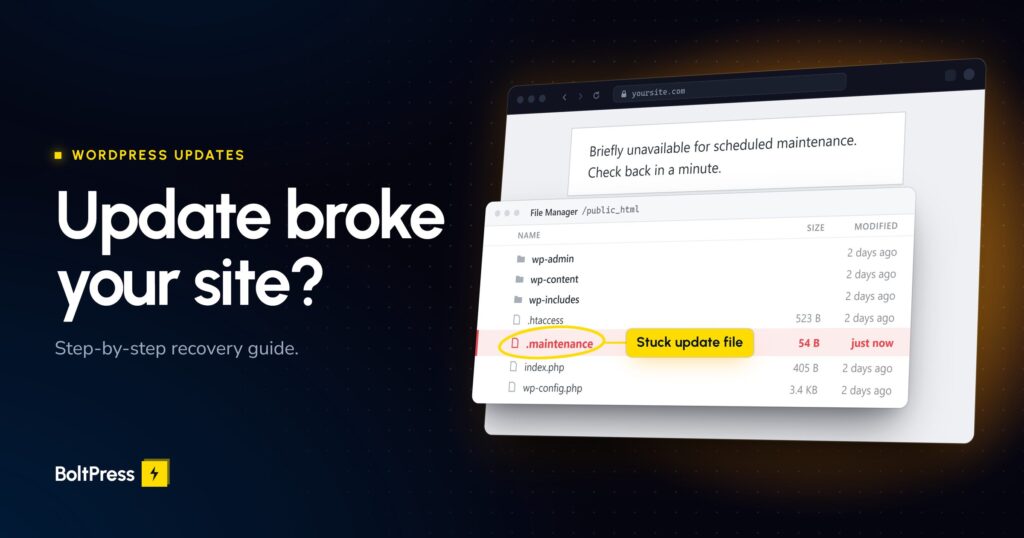
If an update stalled partway, your site can get stuck showing “Briefly unavailable for scheduled maintenance. Check back in a minute.” WordPress creates a hidden file named .maintenance in your site’s root folder during updates and normally deletes it automatically. When it does not, connect via FTP or File Manager, find .maintenance in the root (the same folder as wp-config.php), and delete that one file. Your site returns immediately.
Turn on debug logging to find the exact culprit
If you cannot tell what broke, ask WordPress to write it down. Open wp-config.php and, above the line that says / That's all, stop editing! /, add:
define( 'WP_DEBUG', true );
define( 'WP_DEBUG_LOG', true );
define( 'WP_DEBUG_DISPLAY', false );
@ini_set( 'display_errors', 0 );
WP_DEBUG_DISPLAY set to false keeps errors off the public page, so visitors do not see them. Reload the broken page, then open wp-content/debug.log and read the newest entry at the bottom. The fatal error line usually names the exact plugin file that failed. When you are finished, set these back to false and delete the log file, because you do not want debug logging running on a live site long term.
Increase the PHP memory limit (for a memory-related white screen)
If your log points at exhausted memory, add this to wp-config.php above the same “stop editing” line:
define( 'WP_MEMORY_LIMIT', '256M' );If that is not enough, your host can raise the limit in php.ini. Avoid the old trick of adding php_value memory_limit to .htaccess. It only works on Apache with the older mod_php setup. On Apache running PHP-FPM it throws a 500 error, and on Nginx it is ignored entirely, so it is not a reliable fix. If you are not certain what your host runs, ask them to raise the limit instead.
How to roll back the update that broke it
Sometimes the cleanest fix is to put the previous version back. The free WP Rollback plugin adds a “Rollback” link to your Plugins and Themes screens, letting you reinstall an earlier version of anything hosted on WordPress.org. For premium plugins, you will need the previous version’s ZIP file from the vendor, then upload it manually.
Two cautions. Back up first, because a rollback is still a change. And here is the one that bites store owners: if the update already ran a database upgrade (WooCommerce and its extensions often do), rolling back only the code leaves old code running against a newer database, which can cause new and confusing errors. For anything that touched your database, a clean restore from a pre-update backup is safer than a code-only rollback.
If this step feels risky on a live store, you do not have to do it alone. A BoltPress engineer can take over, find the cause and get your store back online. See emergency fix options.
Restore from backup: your ultimate undo
If nothing above worked, restoring a backup from just before the update is the reliable reset button. The two safest routes for non-technical owners are your host’s one-click snapshot/restore (most managed hosts keep daily backups) or a backup plugin like UpdraftPlus, which has a Restore button.
Restore carefully, because this is where data can be lost. Restoring an older database overwrites everything that changed since the backup, including new orders, customer accounts, and stock levels. On a quiet brochure site this is harmless. On a live store that has taken orders since the last backup, treat restore as a last resort and reconcile the recent orders afterward rather than blindly overwriting them. If that sounds nerve-wracking, it is a good signal to bring in help.
WooCommerce store down? Special steps for broken checkout
Store owners have extra failure modes that the generic guides ignore. If your products page or checkout broke after an update, work through these.
The “WooCommerce database update required” notice
After some WooCommerce updates you will see a banner asking you to update the database. This is expected. Back up first, click to run it, and watch progress under WooCommerce, Status, Scheduled Actions. A common reason this notice will not clear is a stuck Action Scheduler (the queue WooCommerce uses for background jobs). If it stalls, that is worth a closer look rather than repeated clicking.
Cart works, but payment fails
If customers can add to cart but cannot pay, check WooCommerce, Status, Logs for entries around the time of a failed order. Then disable caching and JavaScript minification specifically on the cart and checkout pages, because aggressive optimization frequently breaks the checkout’s live scripts. Also look for an outdated theme template override: if your theme has its own copy of WooCommerce templates in a /woocommerce/ folder, an update can leave it out of date, and WooCommerce, Status will flag this. Finally, re-check and re-authenticate your payment gateway (Stripe, PayPal) settings, which can drop their connection after a plugin update.
A payment went through but no order was created
This is the scenario that keeps store owners up at night, and no generic guide covers it. It usually means a transaction landed while the site was mid-update, or a payment webhook failed to reach your store, so the money moved but WooCommerce never recorded the order. Do not guess at this one. The right move is to reconcile the captured payments against your orders carefully, ideally with someone who has done it before, so a real customer is not left paid-but-empty-handed.
How to test checkout safely without scaring customers
Run the official WooCommerce conflict test: switch to a default theme, deactivate non-essential plugins, then reactivate them one by one while testing checkout after each. To do this without your live visitors seeing a half-broken store, use the free Health Check & Troubleshooting plugin, which applies your testing changes only to your own session. Customers keep seeing the normal site while you hunt the conflict.
The real cost of staying down
It is worth being honest about the stakes, because they are what make speed matter. If your store averages, say, 5 orders an hour at a 60 dollar average order value, every hour of broken checkout is roughly 300 dollars of orders that never happened, plus the customers who try once, fail, and never come back. On top of lost sales, an extended outage can dent your search rankings and your hard-won customer trust. We have seen owners describe “2 weeks ZERO sales” after a botched update went unnoticed. The fix is rarely expensive. Staying down is.
When should you stop and call a professional?
There is no shame in handing this off. In fact, the smart rule is simple: if the next step is irreversible, or being wrong is expensive, back up and get help. Specifically, consider calling in a professional when:
- You run a live store that is losing sales right now.
- The fix needs direct database edits you are not confident making.
- The “Error establishing a database connection” message persists after you have checked credentials with your host.
- A restore would overwrite recent orders and you are not sure how to reconcile them.
- You suspect a hack or malware, not just a bad update.
- You have worked the steps above and still cannot read the cause from the debug log.
You have two good options. If you have a recent backup and a little time, the steps above will get your store back online. If you would rather not risk it on a live store, or you simply want it handled fast, hand it to us. Same fix, no guesswork. Have an engineer fix it for you.
How to make sure this never happens again
Once you are back online, the real win is making sure the next update is a non-event. This is exactly what a managed maintenance setup is for, and it is protection, not luxury:
- Back up before every update and check the site after it, with an automatic rollback if the check fails, never a blind update on your live store.
- Keep off-site backups taken daily (or in real time for busy stores), so a clean restore is always one click away.
- Monitor uptime, so a problem is caught the moment it happens, not when an angry customer emails you.
- Use a child theme so theme updates never wipe your customizations.
- Trim to fewer, well-maintained plugins. Every extra plugin is one more thing that can break on update day.
Now that you are back online, the goal is to make sure this never happens again. A care plan runs every update with a backup first, a health check after and an automatic rollback, keeps daily off-site backups, and monitors uptime, so the next problem is caught before your customers ever see it. See how managed WooCommerce maintenance prevents the next outage, or compare care plans.
Frequently asked questions
Why did my WordPress site go down right after an update?
Most post-update outages come from a plugin or theme conflict, a PHP version mismatch, an incomplete or failed update, or a memory limit being hit. Since WordPress 5.2, a caught PHP fatal error shows “There has been a critical error on this website” instead of a blank screen. Start by deactivating whatever you just updated.
How do I fix my site if I am locked out of wp-admin?
Use FTP or your host’s File Manager. Rename the folder of the plugin you just updated inside /wp-content/plugins/ to disable just that plugin. If that does not work, rename the whole plugins folder so WordPress disables all plugins, then rename it back and reactivate them one at a time. Renaming is reversible, so do not delete anything.
I did not get the WordPress recovery email. What now?
Check spam first. The recovery email can be blocked because it sends straight from your web server before your email plugins load, and WordPress rate-limits how often it resends. Reload the broken page to request a fresh one, and if it still does not arrive, fix the site via FTP and debug logging instead.
How do I find which plugin broke my site fastest?
Turn on debug logging by adding WP_DEBUG, WP_DEBUG_LOG, and WP_DEBUG_DISPLAY (set to false) to wp-config.php, reload the broken page, then open wp-content/debug.log and read the newest entry at the bottom. The fatal error line usually names the exact plugin file. Set debug back to false and delete the log when done.
Can I roll back or undo a WordPress update?
Yes. The free WP Rollback plugin adds a Rollback link to your Plugins and Themes screens for anything hosted on WordPress.org. Premium items need the previous ZIP from the vendor. Always back up first. If the update already ran a database change, common with WooCommerce, restore a pre-update backup instead of rolling back the code only.
How do I get my site out of maintenance mode?
WordPress creates a hidden .maintenance file during updates and usually removes it automatically. If an update stalls, the site can get stuck showing “Briefly unavailable for scheduled maintenance.” Connect via FTP or File Manager, find .maintenance in your site’s root folder, and delete it. The site comes back immediately.
My WooCommerce checkout broke after an update. How do I fix it without losing orders?
First switch the store to Coming Soon mode so customers cannot hit a broken checkout. Check WooCommerce, Status, Logs, disable caching and JavaScript minification on cart and checkout, look for outdated template overrides, and re-check your payment gateway settings. If a payment was captured but no order appeared, have a professional reconcile it rather than guessing.
Written by the BoltPress team, the engineers who fix and maintain WooCommerce stores for a living. If your site is down right now, we can get your store back online.