
In 30 seconds. A slow WooCommerce backend is rarely your host alone. Admin screens skip the page cache, so every click loads all your plugins and runs fresh database queries. The usual causes are background jobs that piled up, orders still kept in WordPress’s old storage (or in two places at once), oversized settings loaded on every request, and plugins that phone home on every screen. Time the orders page, read Site Health, check Scheduled Actions and your order storage setting, then fix the biggest cause first. Don’t bulk-delete anything to make it go away.
The shop loads fine for customers. Then you log in, open WooCommerce, Orders, and wait. Six seconds, eight seconds, sometimes a timeout. Editing a product feels like dial-up. Saving an order spins. Store owners describe it often on WordPress and WooCommerce forums, and it almost always has a findable cause.
This guide explains why the WooCommerce admin slows down when the storefront doesn’t, the checks you can run yourself without breaking anything, and what to leave alone.
Why is the WooCommerce admin slow when the shop is fast?
Because your shop’s pages are cached and your admin screens are not. A visitor usually gets a ready-made copy of a product page. Every wp-admin screen is built from scratch for you: all plugins load, the database is queried, and no ready-made page is reused. A fast shop and a slow admin usually means a problem the cache was hiding.
Caching is why the gap can be so large. A page cache stores the finished page and hands it out again, so a slow server barely shows. Logged-in users, the cart, checkout and the whole of wp-admin skip that cache, because they are different for every person. So the admin is the honest view of how fast your store really is.
On top of that, admin screens do more work than shop pages. The orders list counts orders by status, loads customer and payment details for every row, and runs whatever extra columns and filters your plugins add. Saving a product or an order fires every plugin that listens for that change: stock sync, feeds, email marketing, accounting, search indexes.
Is it my host or my store?
Compare a cached shop page with an admin page. If a logged-out product page served from a page cache is still slow, the server is struggling with everything, and hosting is part of the answer. If cached pages are quick and only wp-admin crawls, the time is being spent on your plugins and your data.
A quick way to tell, with no tools:
- Check that the shop has a page cache. In Tools, Site Health, Status, a line saying “Page cache is not detected” means it doesn’t, and then this test can’t blame the host: set up caching first.
- Open a private browser window, stay logged out, and load a product page twice. The second load is the cached one.
- In your normal window, open WooCommerce, Orders and count the seconds until the list appears. Do it three times.
- Try again at a quiet hour, such as early morning.
If everything is slow at all hours, ask your host about your plan’s limits. If the admin is slow and the shop is fast, keep reading. If the admin is only slow at certain times of day, something scheduled is probably running then, such as a backup, an import, a feed sync or a backlog of background jobs.
What makes the WooCommerce orders page so slow?
Usually one of three things: orders still stored in WordPress’s old posts tables, compatibility mode copying every order into two places, or a database full of leftover data that every query has to wade through. A plugin that adds its own columns to the orders list can also add a slow lookup to every row.
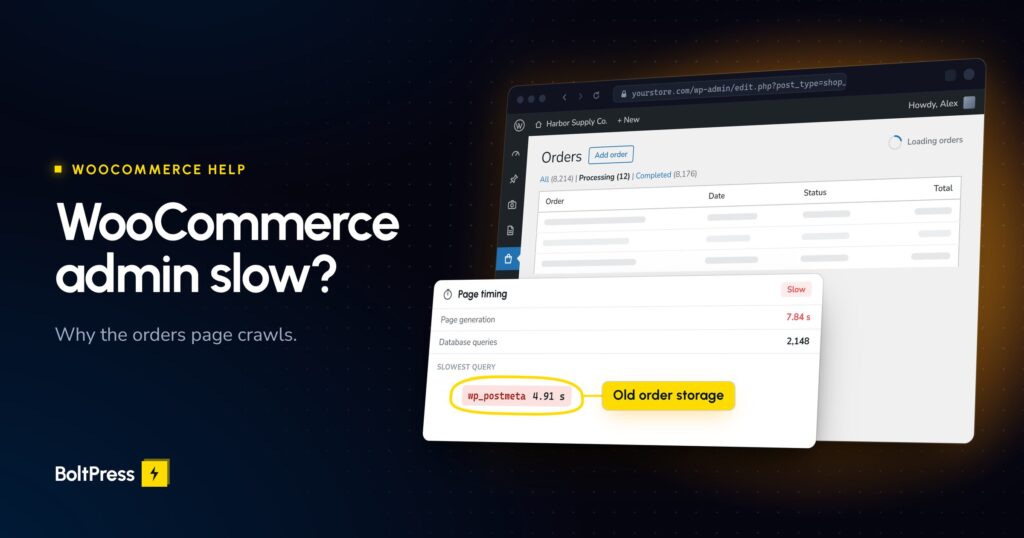
Old order storage. For years WooCommerce stored each order as a WordPress post, with its details spread across many rows of the postmeta table that every plugin shares. WooCommerce built High-Performance Order Storage (HPOS) to fix that: dedicated order tables designed for the way stores search and filter orders. It has been the default for new stores since WooCommerce 8.2 in October 2023 (WooCommerce docs). Stores that started earlier often still run on the old storage, because switching was left for later.
Compatibility mode left on. When a store moves to HPOS, WooCommerce can keep both copies in sync so plugins that still read the old tables keep working. That is a sensible step during the move. Left on for good, every order write happens twice. In its 10.7 announcement, WooCommerce says that turning compatibility mode off “removes the need for synchronization altogether and can improve performance” (WooCommerce developer blog).
To see where you stand, go to WooCommerce, Settings, Advanced, Features and look at the order storage section. Note which storage is selected and whether compatibility mode is checked. Don’t change it yet; see the section on what not to do below.
Can background jobs slow down wp-admin?
Yes, often more than anything else. WooCommerce and many plugins hand slow work to a background queue called Action Scheduler. When that queue stops running, or one job fails over and over, thousands of rows pile up. Every check of the queue gets slower, and the retries keep using the server while you work.
Look at Tools, Scheduled Actions (WooCommerce, Status, Scheduled Actions shows the same list). Three things tell you a lot:
- A notice saying past-due actions were found. It appears when a pending job is more than a day overdue, which means the queue has stopped, not just slowed down. Our Action Scheduler past-due actions fix explains the causes.
- The Failed count. The same hook failing again and again points at one plugin.
- Very large Complete or Pending counts. Finished jobs are kept for 31 days by default and then cleaned up. A plugin that schedules a job for every order or every visitor can still leave a table with tens of thousands of rows.
A stuck queue costs more than speed. WooCommerce’s reports are filled by the same queue, so if your Analytics stopped at a date, that is the same problem. See WooCommerce analytics not updating.
What does “Autoloaded options could affect performance” mean?
It means the saved settings WordPress loads into memory on every single request, admin and shop alike, have grown past about 800 KB. Much of it is often left behind by plugins you removed long ago, or stored by plugins that keep large logs and caches in the settings table. Recent WordPress versions flag it in Site Health.
Go to Tools, Site Health, Status. Write down anything about:
- Autoloaded options, with the size and count it reports.
- A persistent object cache. “You should use a persistent object cache” means WordPress thinks your site is big enough to benefit from keeping database results in memory between requests (Redis or Memcached, if your host offers it). That helps the admin in particular, because the admin is never page-cached.
- Scheduled events running late, or a loopback request that failed. Both point back to the background queue above.
Cleaning autoloaded options is worth doing, but not on a live store and not with a one-click cleaner. Some of those rows belong to plugins that are still active, and removing the wrong one can break checkout. It is a job for a staging copy and someone who knows which rows are safe, and switching a row’s autoload off is safer than deleting it. If that is not you, hand it over.
Which plugins slow down the WooCommerce dashboard?
The ones that do work on every admin screen: plugins that call their own servers for license checks, news or notices, dashboard widgets that fetch remote data, and plugins that add columns or totals to the orders and products lists. If a remote server answers slowly, your screen waits for it.
You rarely need to guess. Query Monitor, a free plugin, shows for any admin screen how long the page took to build, how many database queries ran, which plugin ran the slow ones, and the calls your site made to outside servers through WordPress while building the page. Install it on a staging copy if you have one, or briefly on the live store. Open the orders page and a product edit page, check what Query Monitor reports for each, then remove it.
To test plugins without affecting customers, the free Health Check & Troubleshooting plugin has a troubleshooting mode that switches plugins off, and uses a default theme, for your logged-in session only. Shoppers keep seeing the normal site. Turn WooCommerce back on first, then the other plugins one at a time, and time the orders page after each. While troubleshooting mode is on, only look: don’t edit, refund or save orders or products, because the plugins that normally act on those changes are off for you. Leave troubleshooting mode when you are done.
Why is wp-admin slow when several people are logged in?
Every open wp-admin tab checks in with the server about once a minute through WordPress’s Heartbeat feature. It slows to every two minutes in a background tab and pauses after a while with no activity, though edit screens keep checking for up to an hour. Each check is a full WordPress request. Three staff members with five tabs each add up, and on a small hosting plan they compete with your shoppers.
Heartbeat does useful work: it autosaves products and classic-editor posts, warns you when someone else is editing the same item, and tells you when your login has expired. So don’t switch it off completely. Closing admin tabs you are not using is free and often helps. If you want to slow Heartbeat down, a plugin that sets a longer interval is safer than turning it off.
What should I not do?
Don’t make the symptom disappear by deleting things. Most quick fixes for a slow WooCommerce backend trade speed today for missing orders, emails or renewals later. Leave the data in place, take a backup, and change one thing at a time, testing on a staging copy whenever orders are involved.
- Don’t bulk-delete, cancel or bulk-run pending scheduled actions. Each pending row is work that has not happened yet, such as a subscription renewal or a customer email. Deleting or canceling them loses the work, and running hundreds at once can charge renewals, email customers in a burst or time out halfway. If the hooks mention renewals or payments, hand it over.
- Don’t run a one-click database cleanup on a store. Some cleaners remove data WooCommerce or an active plugin still needs.
- Don’t switch order storage, or turn off compatibility mode, on the live store first. Check that every plugin that touches orders supports HPOS. A plugin that writes order data straight into the old tables will not be seen once syncing stops, and with syncing off there is no quick way back to the old storage. Leave compatibility mode on until the store has run on HPOS without problems for a while. Test on a staging copy, pick a quiet week, and take a backup you know restores (why that matters). Restoring a live store’s database also removes any orders placed after the backup, so it is a last resort, not an undo button.
- Don’t let a staging copy talk to real customers. A copy of a store with a stuck queue can start running queued jobs as soon as someone visits it. Before you use one, switch its payment gateways to test mode and stop its outgoing email, so it cannot charge or email anyone.
- Don’t switch hosts before you measure. If the slowness is a stuck queue or a heavy plugin, it moves with you to the more expensive server.
Where should I start?
Start with the checks that only look: time the orders page, read Site Health, open Scheduled Actions, and note your order storage setting. Together they point at the main cause in most stores. Then fix one thing at a time and time the orders page again after each change.
A sensible order:
- Unstick the background queue if Scheduled Actions shows past-due or repeatedly failing jobs. It is often the cheapest fix with the biggest effect. If the stuck jobs mention renewals or payments, hand it over.
- Find the heavy plugins with Query Monitor or troubleshooting mode, and replace or remove the worst one.
- Clean up autoloaded options and leftover data on a staging copy, switching autoload off rather than deleting rows, or hand this step over.
- Plan the move to HPOS, or the switch-off of compatibility mode, on staging first.
- Add a persistent object cache if your host supports one, and only then look at whether the hosting plan is the limit.
If the shop side feels slow too, run our free speed test on a product page to see how it does for customers.
Want us to find it for you?
If you would rather not dig through queues and database tables on a store that takes orders, our slow WooCommerce store fix does this work. We measure where the time goes in wp-admin and on the shop, take a backup, work on a staging copy first, and then measure the same screens again so you can see the difference. If the past-due notice is the first thing you saw, start with the Action Scheduler fix.
FAQ
Why is my WooCommerce admin slow when the store is fast?
Shop pages are usually served from a page cache, so visitors get a ready-made copy. wp-admin skips the page cache: every screen loads all your plugins and queries the database fresh. A fast shop with a slow admin means the cache is hiding a problem in your plugins, background jobs or data.
Will a caching plugin speed up wp-admin?
A page caching plugin won’t, because logged-in users and admin screens skip the page cache. A persistent object cache, such as Redis or Memcached from your host, can help, because it keeps database results in memory between requests. It works best after the real cause, such as a stuck queue or a heavy plugin, is fixed.
Should I switch my store to High-Performance Order Storage?
For most stores, yes, eventually. HPOS keeps orders in dedicated tables built for the way stores search and filter them, and it has been the default for new stores since WooCommerce 8.2. Check that every plugin that touches orders supports it, test the switch on a staging copy, and keep a backup.
Is it safe to delete old scheduled actions to speed things up?
Not the pending ones. Each is work that has not happened yet, such as a renewal or an email. Completed actions are cleaned up automatically after 31 days by default. If the table keeps growing, find out why the queue is stuck or which plugin floods it instead of deleting rows.
Should I disable the WordPress Heartbeat to speed up the admin?
Not completely. Heartbeat handles autosave, warns when someone else is editing the same item and tells you when your login has expired. Each open admin tab checks in about once a minute. Closing unused tabs helps, and a plugin can lengthen the interval if many people work in wp-admin at once.
Do I need better hosting for a faster WooCommerce backend?
Sometimes, but measure first. If logged-out pages served from a page cache are also slow, the server is the limit. If cached pages are fast and only wp-admin crawls, the time is being spent on plugins and data, and a bigger plan just makes the same problem more expensive.